
#manychat
#instagram automation
#dm automation
Featured
How to Use Manychat to Automatically Reply to Instagram Comments and Send DMs (Step-by-Step Tutorial)
Step-by-step guide to setting up Manychat automation that auto-replies to Instagram comments and sends DMs instantly. Perfect for creators, marketers, and anyone scaling viral engagement without manual messaging.
 Anurag Ghosh
How I Used Manychat to Auto-Reply to Instagram Comments and Send DMs (Step-by-Step)
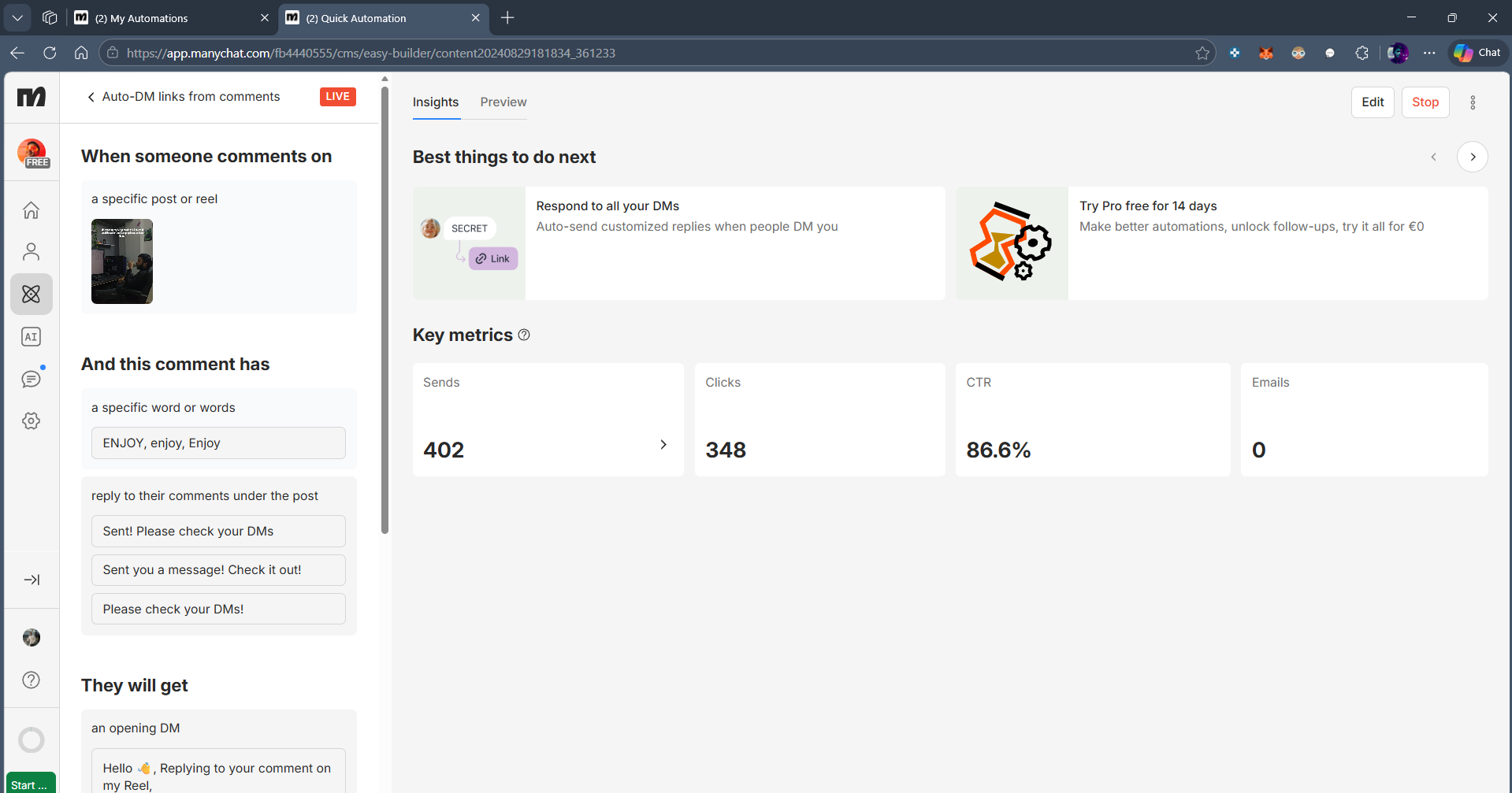
When one of my Reels went viral, hundreds of people commented “ENJOY” asking for the tutorial.
If I had replied manually to every comment and DM’d each person individually, I would’ve spent hours typing the same message over and over.
Instead, I set up a simple Manychat automation that:
• Detects a specific keyword in comments
• Automatically replies to that comment
• Instantly sends the user a DM with the tutorial link
• Delivers the link even if I’m offline
Here’s exactly how you can build the same system.
What You Need Before Starting
• A Creator or Business Instagram account
• A Facebook Page connected to your Instagram
• A Manychat account (free plan works)
• The link you want to send (blog, PDF, Notion, etc.)
Step 1: Connect Instagram to Manychat
Go to Manychat.com
Click Settings → Instagram
Connect your Instagram Business account
Approve all permissions
Make sure:
Your Facebook Page is linked properly. If not, Instagram automation won’t work.
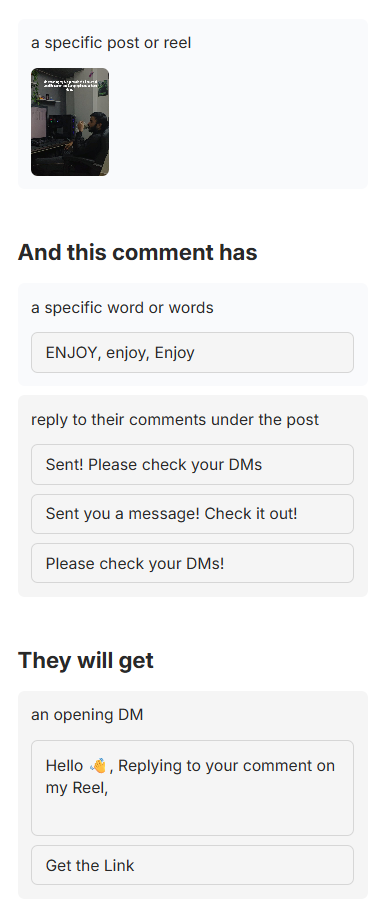
Step 2: Create a Comment Trigger
This is what listens for the keyword.
Go to Automation → New Flow
Choose “Instagram Comments” as the trigger
Select:
Specific Post (recommended for viral reels)
Or Any Post (if you want universal automation)
Add a Keyword condition:
Example: ENJOY
Now, whenever someone comments “ENJOY”, the automation fires.
Step 3: Autoreply to the Comment (Optional but Recommended)
Inside the trigger settings:
Enable:
Reply to comment
Example reply:
“Check your DMs 👀”
This boosts:
• Engagement
• Social proof
• Curiosity for other viewers
Now people see that something happens when they comment.
Step 4: Send the Automated DM
Inside your Flow builder:
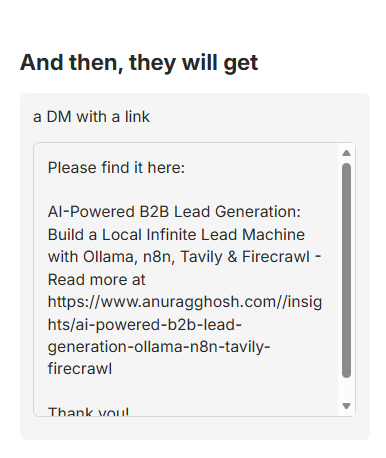
Add a Message node
Write your DM message
Example:
“Hey 👋
Here’s the full tutorial you asked for:
[Insert Link]
If you have questions, just reply here.”
Keep it simple.
Do NOT spam.
Do NOT send 5 messages in a row.
Instagram doesn’t like aggressive automation.
Step 5: Add a Smart Delay (Optional Pro Tip)
To make it feel human:
Add:
Typing delay → 3–5 seconds
This increases perceived authenticity.
Step 6: Publish the Flow
Click Publish.
Test it using a second account.
Comment your keyword.
Make sure:
• Comment reply triggers
• DM arrives
• Link works
Always test before going viral.
Advanced Version (Optional)
If you want to level this up:
• Add a tag like “Reel - Lead Machine”
• Track how many people entered the flow
• Add a follow-up message 24 hours later:
“Did you get a chance to try it?”
Now it’s not just automation.
It’s a nurture system.
Important Gotchas
Instagram 24-Hour Rule
You can only freely message users within 24 hours of interaction.Don’t Use Spammy Language
Avoid words like:
“Free money”
“Guaranteed income”
“Crypto giveaway”Keep It Value-First
If your DM feels salesy, people will report it.Viral Volume Stress
If your Reel explodes, automation handles scale - but your backend link must handle traffic too.
Why This Strategy Works
Psychology:
• Commenting feels low effort
• Public comment increases commitment
• DM feels personal
• Automation removes friction
• Instant gratification increases trust
This is how you scale engagement without burning out.
Final Thought
Viral content is unpredictable.
Automation is predictable.
If you combine both, you build leverage.
If you want more automation breakdowns like this, reply “MORE” in the DM.