
#AI automation
#B2B lead generation
#n8n
Featured
AI-Powered B2B Lead Generation: Build a Local Infinite Lead Machine with Ollama, n8n, Tavily & Firecrawl
A complete start-to-finish guide to building an AI-powered B2B lead generation machine using Ollama, n8n, Tavily, Firecrawl, and Google Sheets. Automate research, scraping, and outreach in minutes instead of hours.
 Anurag Ghosh
AI-Powered B2B Lead Generation
A Start-to-Finish Manual for Building a Local, Infinite Lead Machine
DISCLAIMER:
Correctness and variety of data are subject to the quality and tier of the AI model used. A free or cheap model may not always give appropriate data, but it is an excellent option to try, explore, and learn for future uses. I have used Ollama (local AI) for teaching this setup. I personally use paid AI models for production work, but the architecture remains the same.
Chapter 1: Why This Architecture Wins
The Old Way: Manually searching Google, clicking 20 tabs, copy-pasting into Sheets, and guessing decision-maker emails. Total time: 4+ hours per 10 leads.
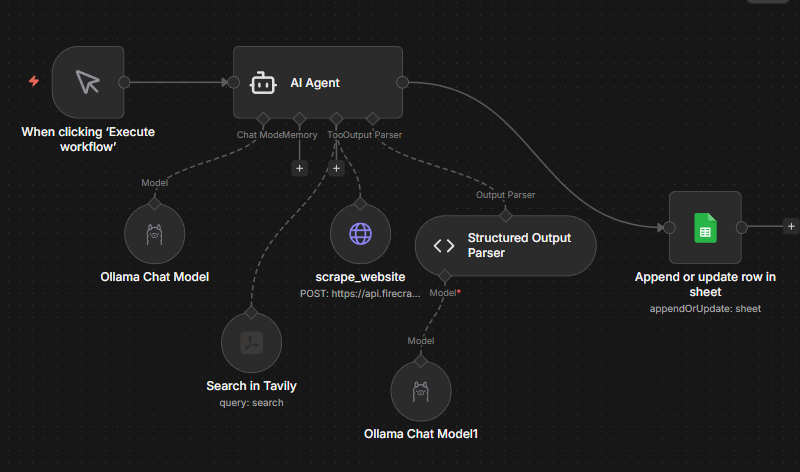
The Architect’s Way: Click “Execute” → Your AI Agent searches the web via Tavily, scrapes official sites via Firecrawl, extracts deep insights, and writes custom pitches. Total time: 2–10 minutes.
Chapter 2: Installing Your Local AI Engine (Ollama)
Ollama allows you to run powerful AI models like Llama 3.1 directly on your computer hardware for free.
Download: Go to ollama.com and download the installer for your OS.
Installation: Run the installer and follow the prompts. Once installed, an Ollama icon will appear in your system tray.
Download the "Brain": Open your Terminal (Mac/Linux) or Command Prompt (Windows). Type the following and press Enter:
ollama run llama3.1
Note: This specific version supports "Tool Calling," which is required for the Agent to use the web search and scraper.
Network Configuration: To allow n8n (running in Docker) to talk to Ollama, you must set an environment variable.
Windows: Close Ollama. Open CMD as Admin and type:
setx OLLAMA_HOST "0.0.0.0". Restart Ollama.Mac/Linux: Run export OLLAMA_HOST=0.0.0.0 before starting Ollama via terminal.
Chapter 3: Installing n8n via Docker
n8n is your automation command center. We run it in Docker so it is isolated and stable.
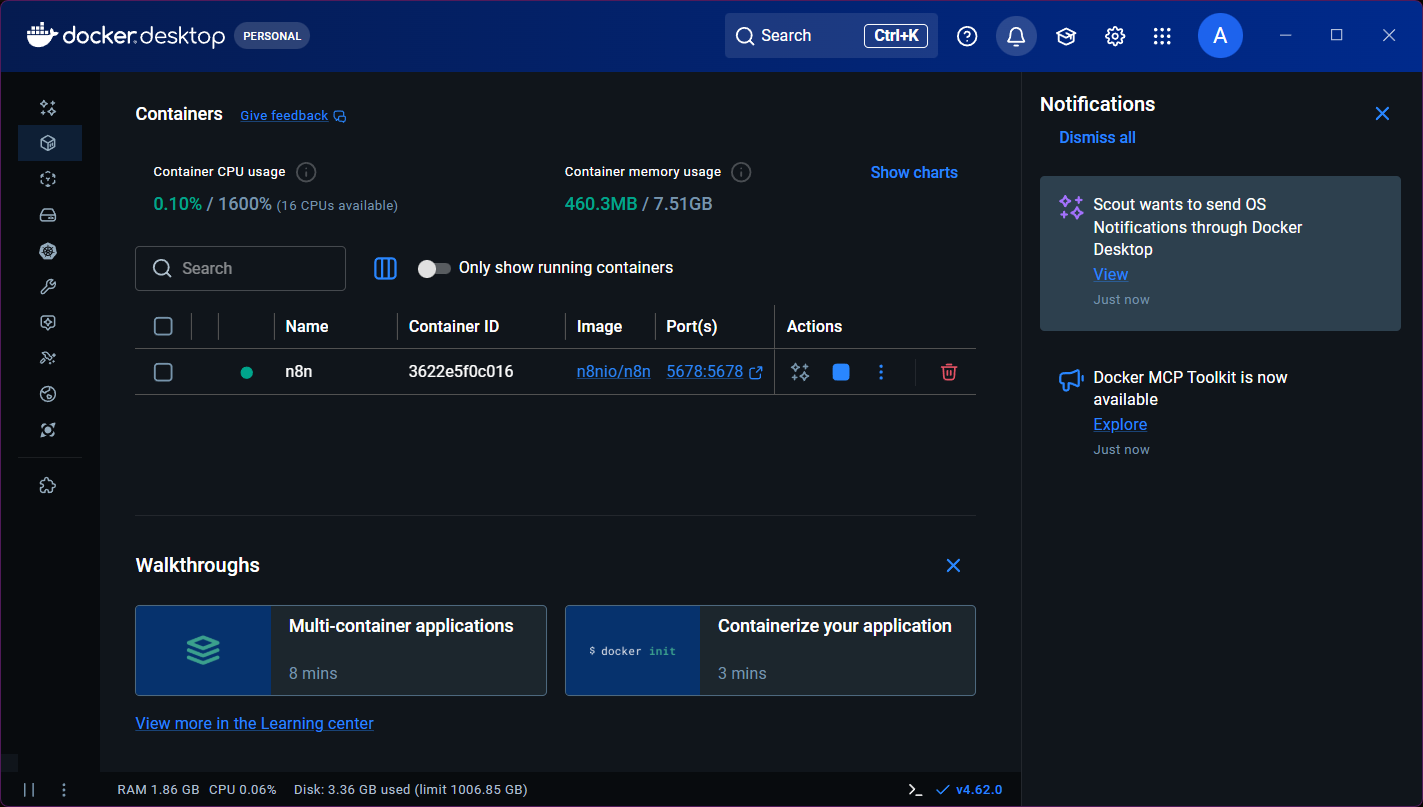
Get Docker: Download and install Docker Desktop from docker.com.
Run the Setup Command: Open your terminal and paste these two lines:
Bash
docker volume create n8n_data
docker run -d --name n8n -p 5678:5678 -v n8n_data:/home/node/.n8n docker.n8n.io/n8nio/n8n
Access n8n: Open your browser and go to http://localhost:5678. Create your owner account.
Chapter 4: Getting Your "Tools" Ready (API Keys)
1. Tavily (The Search Engine for AI)
Tavily doesn't just return links; it returns AI-optimized content.
Go to tavily.com and create a free account.
In your dashboard, copy the API Key.
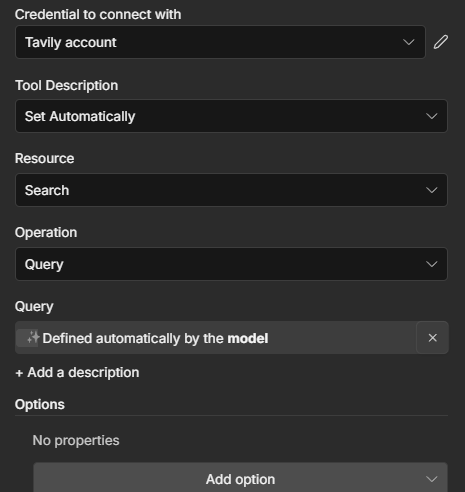
In n8n: Drag a Tavily tool node. Click Select Credential → Create New. Paste your key and name it "Tavily Account."
2. Firecrawl (The Web Scraper)
Firecrawl turns messy websites into clean Markdown that AI can read.
Go to firecrawl.dev and sign up for a free account.
Copy your API Key.
In n8n: This is an HTTP Request Tool. We will configure it in the next chapter.
Chapter 5: Configuring the Google Sheets & Drive API
This is the most detailed part of the configuration. Follow every step exactly.
Google Cloud Project:
Go to console.cloud.google.com.
Create a New Project named "Lead Automation."
Enable APIs:
Go to APIs & Services > Library.
Search and Enable both "Google Sheets API" and "Google Drive API."
OAuth Consent Screen:
Go to OAuth consent screen. Select External.
Fill in "App Name" and "User support email."
Crucial: Under "Test Users," add your own Gmail address.
Create Credentials:
Go to Credentials > Create Credentials > OAuth client ID.
Application Type: Web Application.
Authorized Redirect URI: Paste http://localhost:5678/rest/oauth2-credential/callback.
Copy your Client ID and Client Secret.
In n8n:
Add a Google Sheets node.
Create a new credential, paste the ID and Secret, and click Sign in with Google.
Approve all permissions on the Google popup.
Chapter 6: Building the Agent & Scraper Tool
1. The AI Agent Configuration
Node: AI Agent.
Temperature: Set to 1.0 (Options > Sampling Temperature).
System Message:
You are a B2B researcher for a digital marketing agency. Find 3-5 real companies in India needing branding, creatives, or digital marketing. You MUST use Tavily to find them and scrape_website to verify them. Output ONLY JSON.User Prompt:
Find 3-5 high-potential B2B startups in India. Use Tavily to find URLs. Use scrape_website on each URL to find contact details and paint points.
2. The scrape_website Tool (Detailed)
This is an HTTP Request Tool connected to the Agent.
Method: POST.
Authentication: Header Auth (Name: Authorization, Value: Bearer YOUR_FIRECRAWL_KEY).
Body (JSON):
JSON
{
  "url": "={{ $fromAI('url').startsWith('http') ? $fromAI('url') : 'https://' + $fromAI('url') }}",
  "formats": ["markdown"],
  "onlyMainContent": true
}
Chapter 7: The Final Data Guard (Structured Parser)
The AI output must be perfect for Google Sheets.
Connect a Structured Output Parser to the Agent.
Set Schema Type to JSON Schema.
Turn Auto-Fix Format to ON.
Connect your Ollama Chat Model to the Parser as well (this gives the parser the "brain" to fix the code).
Paste the Schema:
JSON
{
  "type": "array",
  "items": {
    "type": "object",
    "properties": {
      "company": { "type": "string" },
      "website": { "type": "string" },
      "contact_name": { "type": "string" },
      "email": { "type": "string" },
      "requirement": { "type": "string" },
      "outreach_idea": { "type": "string" },
      "date": { "type": "string" }
    },
    "required": ["company", "website", "date"]
  }
}
Chapter 8: Sending to the Sheet
Connect the Google Sheets node to the AI Agent.
Resource: Sheet. Operation: Append or Update Row
Mapping: For each column in your sheet, drag the matching field from the AI Agent's output (e.g., drag company to the "Company Name" column).
Execution: Click Execute Workflow. Watch the logs as the Agent searches, scrapes, and finally appends your rows. You have now built a professional-grade lead generation machine.
Common Gotchas
1. Hallucinated Companies
AI may invent companies if search results are weak.
Free/local models are more prone to fabrication.
Missing or vague websites are a red flag.
Fix: Always force scraping before accepting output.
Spreadsheet Alert: Flag rows where Website is empty or does not start with http.
2. Duplicate Leads
Same company may appear across multiple runs.
AI may rediscover companies via different URLs.
Manual appending increases duplication risk.
Fix: Add duplicate detection based on Website or Company Name.
Spreadsheet Alert: Use COUNTIF to mark rows as “Duplicate” when Website appears more than once.
3. Generic Emails Instead of Decision-Makers
AI often extracts info@, contact@, support@ emails.
These lower response rates significantly.
They are valid but low-priority.
Fix: Flag generic inboxes for review.
Spreadsheet Alert: Mark emails containing info@, contact@, support@ as “Generic Email”.
4. Missing Contact Information
Some websites do not publicly list emails.
Scrapers may not find hidden contact pages.
AI may leave fields blank.
Fix: Allow blank emails but mark them clearly.
Spreadsheet Alert: Flag rows where both Contact Name and Email are empty.
5. Weak or Hallucinated Insights
If scraping fails, AI may guess pain points.
Short “requirement” fields often signal weak scraping.
Overly generic outreach ideas indicate shallow context.
Fix: Enforce minimum character length for insights.
Spreadsheet Alert: Flag Requirement fields under 40 characters.
6. Broken or Incomplete JSON Output
Structured parser may fail silently.
Required fields may be missing.
Partial rows may still get appended.
Fix: Enforce required fields in schema.
Spreadsheet Alert: Flag rows where Company or Website is empty.
7. Over-Creative Outreach Messaging
High temperature settings may cause exaggerated claims.
Outreach ideas may become too long or unrealistic.
This reduces credibility.
Fix: Lower temperature to 0.7–0.8 for production.
Spreadsheet Alert: Flag Outreach fields exceeding 400–500 characters.
8. Scraping Blocked or Empty Pages
Some websites block bots.
Firecrawl may return minimal content.
AI output becomes shallow or repetitive.
Fix: Validate scraped content length before processing.
Spreadsheet Alert: Add a “Weak Insight” flag when extracted content is too short.
9. API Rate Limits
Tavily and Firecrawl free tiers have limits.
Workflow may stop mid-execution.
Partial data may appear in Sheets.
Fix: Log execution timestamps and row counts.
Spreadsheet Alert: Add a “Batch ID” or “Run Timestamp” column to track incomplete runs.
Honest Conclusion
AI-powered B2B lead generation is powerful, but it is not magic.
This system dramatically reduces research time, removes repetitive work, and gives you structured, scalable outbound infrastructure. What used to take hours can now take minutes. For agencies, freelancers, and B2B founders, that leverage compounds quickly.
However, automation does not eliminate responsibility.
Local models can hallucinate. Scrapers can fail. APIs can throttle. Generic emails can slip through. And without validation layers, you can quietly build a messy database at scale.
The difference between a “cool AI demo” and a reliable outbound engine is discipline:
Force verification through scraping
Enforce structured schemas
Add spreadsheet-level alerts
Monitor duplicates
Review edge cases
Improve prompts over time
Think of this system as an assistant, not a replacement for judgment.
Start with experimentation. Use free models to understand the architecture.
Once you see consistent results, upgrade the intelligence layer if needed, but keep the structure intact.
Good automation is not about replacing humans.
It is about freeing humans to focus on strategy, personalization, and closing.
If you treat this system as a foundation and continuously refine it, it can become one of the highest-leverage assets in your growth stack.
PS - If you want a robust workaround for your company/product, I'd love to show my angles for the same, Given that I have helped companies around the word grow and thrive.
Contact : https://www.anuragghosh.com/contact